A 73-year-old beginner with mild essential hand tremor, hand arthritis, and glare-sensitive eyes often turns to tablet painting to skip wet cleanup. Yet standard tablet advice triggers hand cramps, shaky lines, and neck strain from day one.
Standard guides push bulky desk stands while leaving screens glossy and stylus settings stiff. Adding matte surface friction and softening the pressure curve steadies tremor and spares finger joints better than desk hardware alone, while November 2026 pricing avoids monthly subscriptions.
Screenless Desk Pads Split Hand-Eye Focus and Strain Your Neck
Budget shoppers often buy a screenless USB graphics pad because it pairs cheaply with an existing laptop or desktop computer. That choice fails quickly because the pad sits flat on a desk while your eyes stare forward at a separate monitor.
This split tracking posture forces a stiff neck and disconnects your hand from your brush strokes. External pen display monitors tethered via HDMI and USB-C cables solve alignment and offer large screens for aging eyes, yet heavy cables prevent comfortable armchair use.
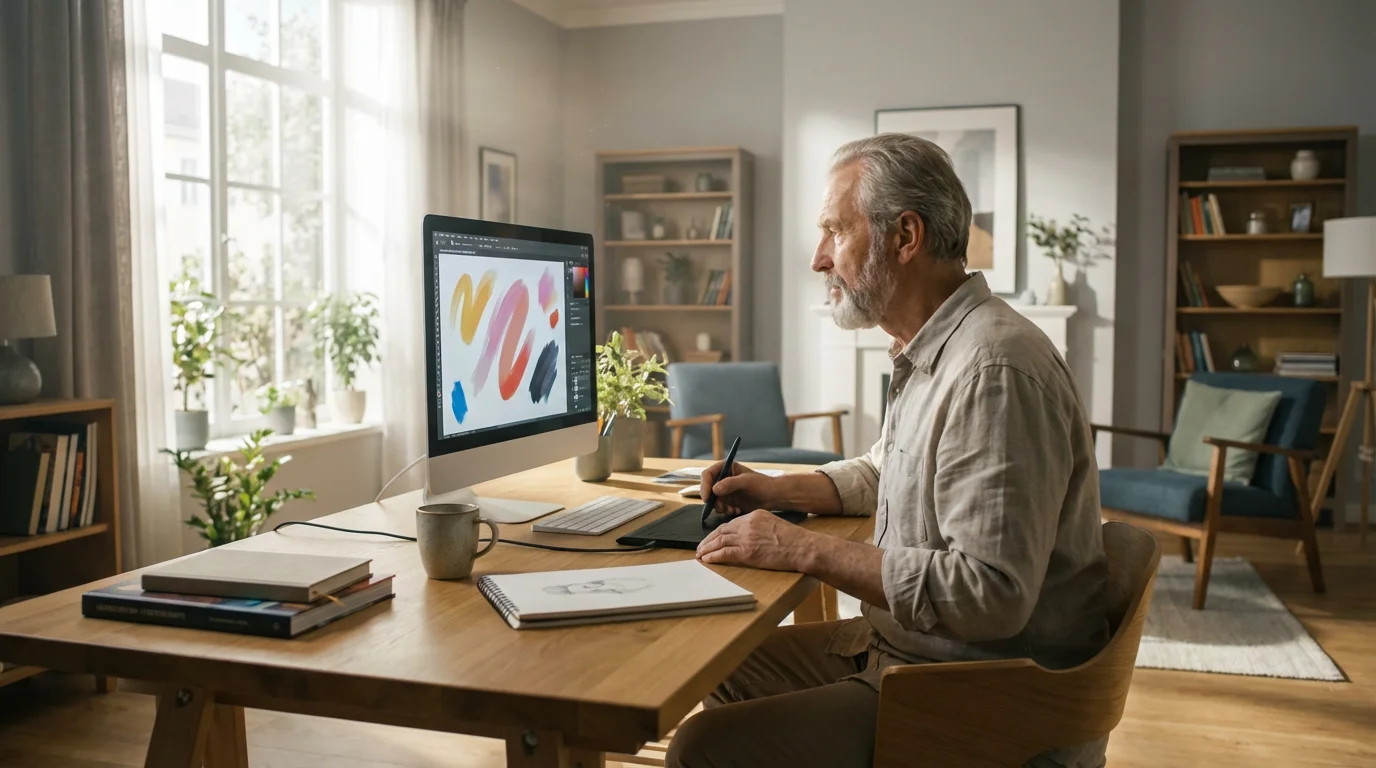
The fix is drawing directly on a standalone tablet propped on a folding easel stand angled between 20 and 30 degrees. Moving to an iPad or a Samsung Galaxy Tab S-series tablet puts your stylus tip directly under your eyes in an armchair.
Slick Glass and Slim Styluses Worsen Hand Tremor and Joint Pinch
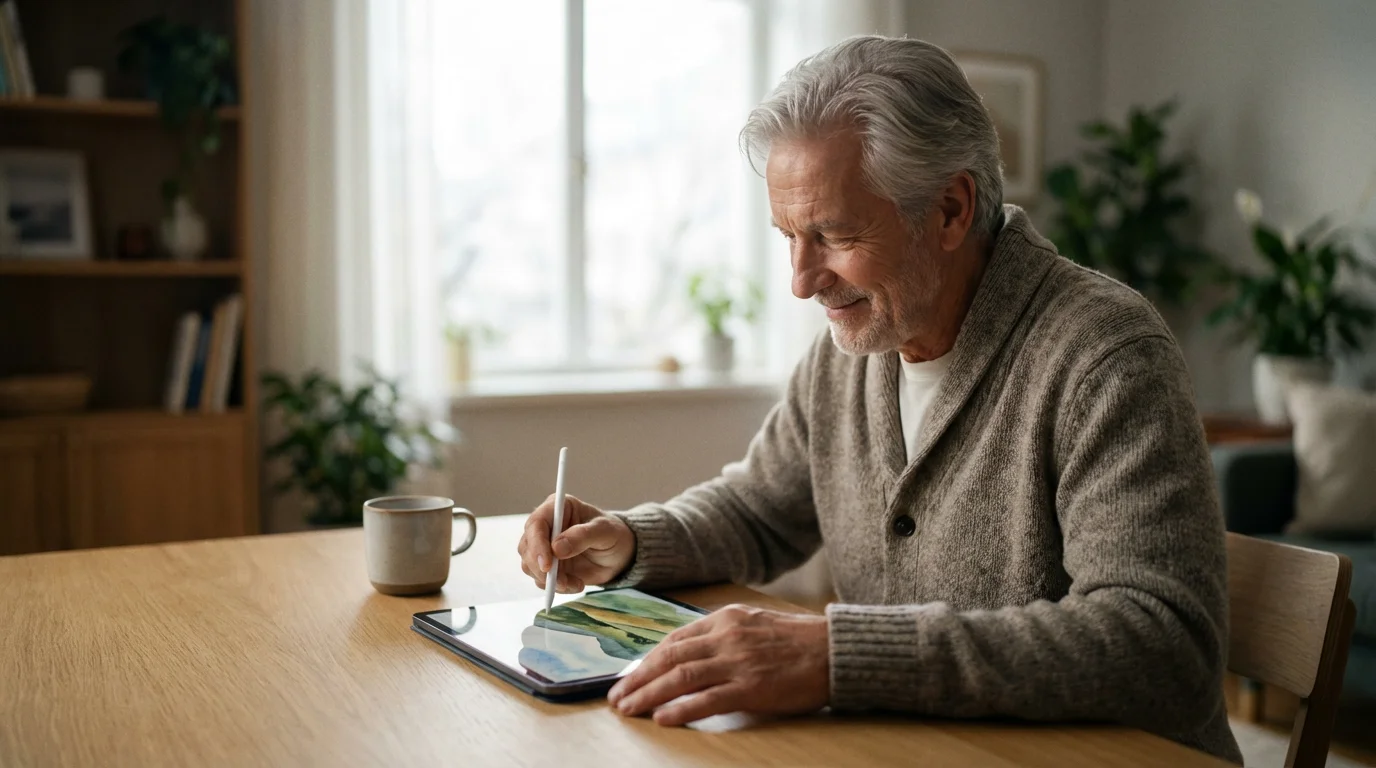
Drawing on bare tablet glass with a naked stylus backfires fast for anyone managing mild essential tremor or hand arthritis. Smooth glass offers zero friction, so shaking fingers skate uncontrollably while hand muscles clench tighter to steady each line.
Meanwhile, thin, rigid stylus barrels force a tight pinch grip that exhausts finger and thumb joints within minutes. Glossy glass also reflects overhead fixtures and windows, making glare-sensitive eyes squint while you crane your neck to dodge bright reflections.
Two contact-point fixes counteract both problems before you start painting:
- Apply a matte screen protector: A thin, paper-textured film diffuses window glare, follows OSHA ergonomic guidance on screen glare when paired with smart seating away from fixtures, and adds light drag that steadies trembling strokes.
- Widen the stylus barrel: Clinical guidance from the Hospital for Special Surgery on hand arthritis recommends sliding a built-up grip over thin pens to widen the barrel and ease joint strain.
Ask your doctor or an occupational therapist what grip diameter and session length suit your hands. Keep a microfiber cloth nearby to wipe away skin oils that cause skipping, plus an inexpensive cotton artist glove over your ring and pinky fingers.
Support your elbow in an armchair so your wrist stays relaxed rather than floating midair. Take a three-minute stretch break every 30 minutes to keep finger and thumb joints comfortable.
Missing Pressure Sensitivity and Stiff Curves Force Hard Pressing
Buying the wrong stylus or keeping default software sensitivity creates a hidden mechanical trap. Without proper pressure response, beginners with stiff fingers press hard against hard glass just to lay down a dark stroke.
Before ordering an iPad stylus from the Apple Pencil lineup model options, check compatibility carefully. The $79 USB-C pencil works with newer USB-C iPads for tilt shading, yet it lacks pressure sensitivity completely.
In contrast, the $99 first-generation and $129 Apple Pencil Pro models vary stroke thickness as you press. Android buyers choosing Samsung Galaxy Tab S-series models, like the Galaxy Tab S11 Series, get a pressure-sensitive S Pen in the box.
Bundling the S Pen saves $79 to $129 on a separate pen purchase. If you pair an existing iPad with the $79 USB-C Apple Pencil and $12.99 Procreate ($91.99 total), preset wider brushes beforehand to avoid heavy downward pressure.
Even with a pressure-sensitive stylus, factory curves often require firm pressure to reach full ink density. Open your app settings and raise the low-pressure response so a featherlight touch lays down rich dark lines without straining thumb joints.
Tiny White Menus Cause Eye Strain and Accidental Undo Taps
Opening a drawing app with factory interface defaults punishes glare-sensitive eyes and shaking hands. Tiny icons, faint text, and glaring white borders force constant squinting, while tiny undo buttons frustrate anyone trying to clear stray tremor marks.
Spend five minutes fixing these five interface settings before painting your first stroke:
- Enlarge menus and text: Turn on Larger Text, Display Zoom, and contrast controls in iPadOS Accessibility settings, or open Krita’s Hi-DPI and manual interface scaling menu to enlarge icons.
- Switch to a dark interface theme: Dimming toolbars to charcoal gray reduces eye strain during evening sessions while keeping your white drawing sheet easy to judge.
- Flip toolbars to your non-dominant side: Dock layer and brush panels on the left if you draw right-handed, or the right if left-handed, so your palm stops triggering menus.
- Set up two-finger undo: Confirm that tapping two fingers on the screen reverses your last stroke, eliminating tiny back-arrow clicks when your hand shakes.
- Save your softened pressure curve: Keep the raised low-pressure response active across your favorite brushes so light strokes remain consistent.
Configuring accessibility and gesture shortcuts once prevents daily frustration during every painting session. Two-finger tap undo lets you relax into loose brushwork because stray marks vanish instantly without hunting for small toolbar icons.
Subscription Software Drains Budgets While Wet Supplies Waste Paper
Mainstream software ads steer retirees toward monthly creative subscriptions packed with commercial tools hobbyists rarely open. Meanwhile, testing new compositions directly on expensive cotton watercolor paper wastes physical sheets whenever proportions or color values fall flat.
Software pricing as of November 2026 lets you avoid ongoing subscriptions completely. You can pick from five capable one-time or free programs depending on your tablet or computer:
- Procreate ($12.99 one-time, iPad only): Includes over 300 brushes, intuitive two-finger tap undo gestures, and a clean workspace with zero subscription fees.
- Krita (free open source, Windows/macOS/Linux/Android beta): Offers full layer support and custom brush engines at no cost from krita.org, with optional paid app-store listings for automatic updates.
- Affinity by Canva (free, Mac/Windows/iPad): Combines pixel painting, vector illustration, and page layout in one free download with a free Canva account, replacing legacy paid Serif licenses while keeping optional AI tools inside paid Canva plans.
- Rebelle 8 ($89.99 Standard or $149.99 Pro lifetime, Windows/macOS): Simulates real watercolor bleed, gravity drips, and thick oil impasto ridges if you miss wet-media behavior on paper.
- Sketchbook (free mobile base; $24.99 desktop Pro): Provides an uncluttered sketchbook interface for quick pencil and ink studies on iOS and Android with an optional $2.99 Premium Bundle.
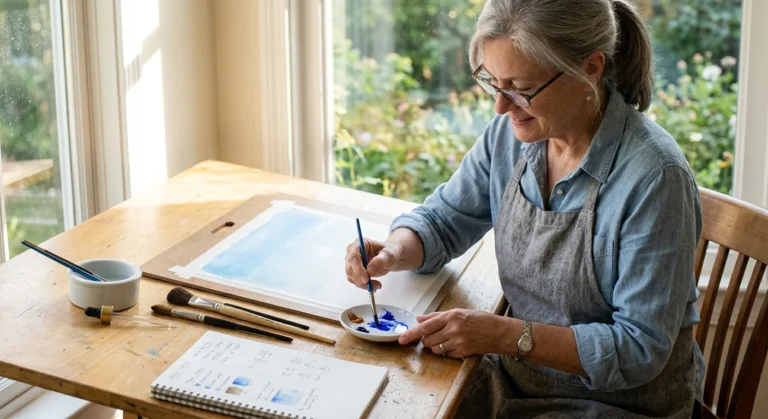
If you already mix pigments from our botanical watercolor palette guide, a $12.99 or free app lets you test color harmonies digitally first. A tablet also slips into a small daypack for outdoor sketching with zero drying time.
Blank White Pages Cause Tight Grips and Early Fatigue
Starting from an empty white screen stalls beginners because drawing accurate proportions freehand demands intense fine-motor control. Trying to force steady outlines from scratch makes your fingers grip tighter until your hand cramps.
Solve blank-canvas tension with a 30-minute layered wash project using a scenic snapshot from your retirement photography collection. Lowering the photo’s opacity solves perspective automatically so your hand focuses purely on relaxed brushwork.
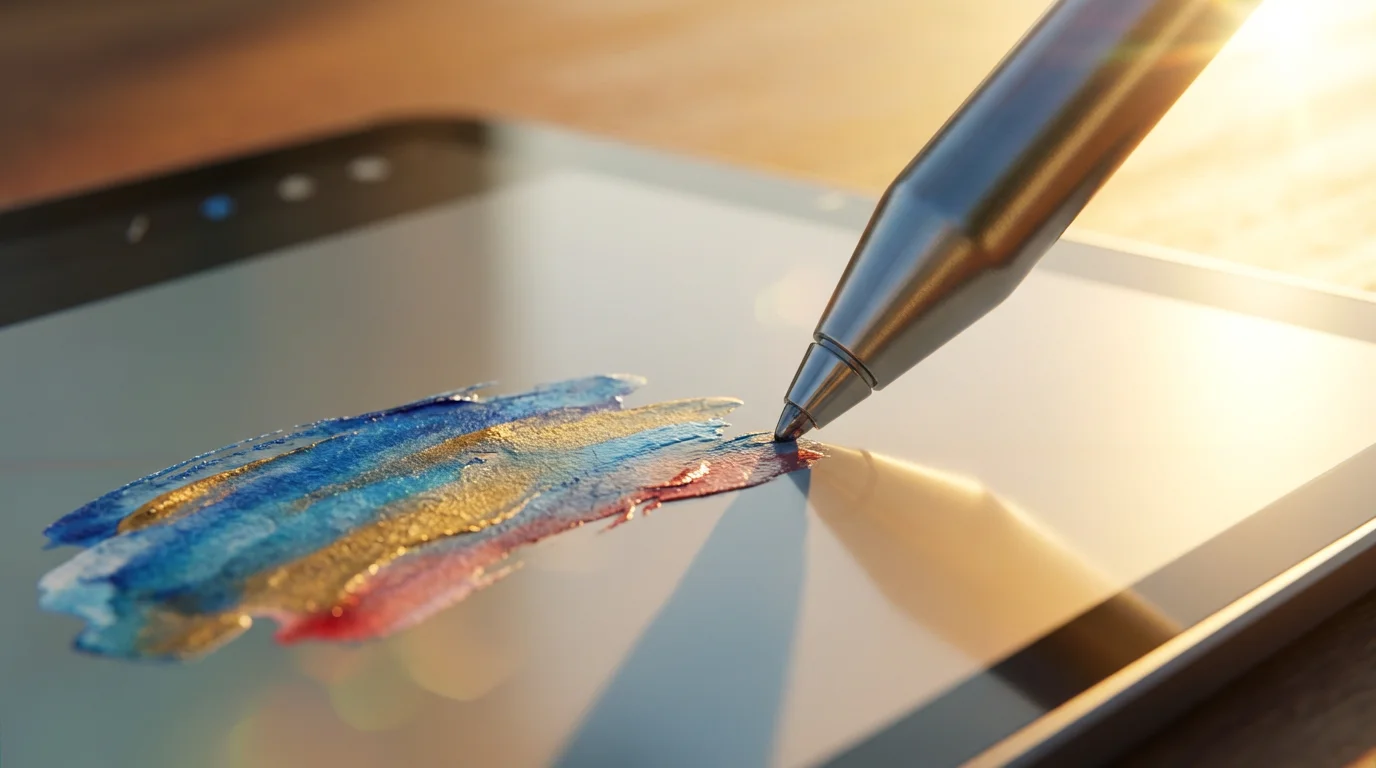
Follow these six steps in Procreate, Krita, or Sketchbook to turn one favorite travel photo into a loose ink-and-wash study:
- Create your sheet: Open a new document sized at 3000 by 2400 pixels (equal to 8 by 10 inches at 300 dpi for crisp home printing).
- Dim your Photo Layer: Import your travel photo onto the bottom layer, label it Photo Layer, and drag its opacity slider down to 35% so it looks like faint tracing paper.
- Trace contours on an Outline Layer: Add a new blank layer above the Photo Layer, label it Outline Layer, pick a medium ink pen, and trace only the horizon, rooflines, trees, and main silhouettes.
- Paint on a Color Wash Layer: Create a layer placed between the Photo Layer and Outline Layer, label it Color Wash Layer, select a soft watercolor brush, and sweep sky, water, and foliage colors inside your outlines.
- Hide the Photo Layer: Turn off visibility on the Photo Layer, using the checkbox in Procreate or the eye icon in Krita and Sketchbook, then add a few dark shadow strokes on the Outline Layer.
- Save two file versions: Keep the layered native file for future color tweaks, and export a flat JPEG or PNG copy to email family or print on matte cardstock.
Do not push past joint fatigue to finish every detail in one sitting. Stop after 30 minutes even if edges look loose, check your wrist, thumb, and eyes, then adjust stand angle or grip thickness before painting again.